
- How to Sign Up at MrLuck
- What to Prepare Before Registering
- Personal Details and Your Current Address
- Email Access and a Secure Password
- Completing the MrLuck Registration Form
- Entering and Reviewing Your Information
- Accepting Terms and Choosing Marketing Preferences
- Submitting the Form and Following the Next Prompt
- Signing Up on a Mobile Phone or Tablet
- Checking Mobile Entries Before Submission
- Identity Verification During Account Setup
- Automatic Checks Using Your Registration Details
- Documents MrLuck May Request
- Preparing Readable Documents
- What to Do After Your Account Is Created
- Reviewing Your Details and Communication Settings
- Setting Deposit Limits Before Funding the Account
- Moving from Registration to Your First Deposit
- MrLuck Sign-Up Problems and Practical Solutions
- Email, Password or Personal-Detail Errors
- An Existing Account or Forgotten Login Details
- A Registration Page That Will Not Load or Respond
- Verification That Needs Further Information
- Getting Help with MrLuck Registration
How to Sign Up at MrLuck
To create your MrLuck account, open the official website and select Join Here. Complete the Registration form with your personal details, choose your username and password, review your communication preferences and accept the account terms and privacy policy.
Use your own information throughout the form. Your name, date of birth and address are used during account verification, so check them carefully before submitting. Creating an account and completing identity verification are separate parts of the setup process. Verification must be completed before you can deposit.
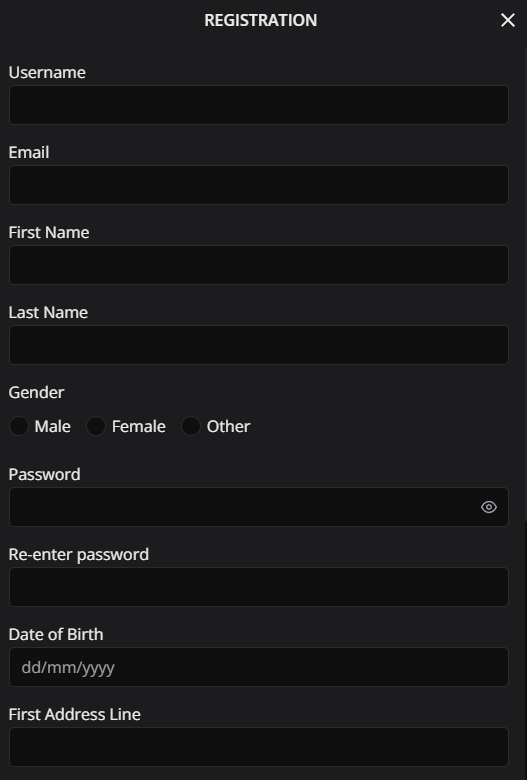
The MrLuck registration form can be completed in the following stages:
- Choose your username. Enter the username you want to use for your account. Follow any instructions displayed beside the field.
- Enter your email address. Use an address you can access and check it for typing mistakes.
- Add your first and last names. Enter your own names consistently with your identification documents.
- Select your gender. Choose Male, Female or Other from the options provided.
- Create and confirm your password. Enter your chosen password in Password, then type the same password in Re-enter password.
- Enter your date of birth. Check the day, month and year before continuing.
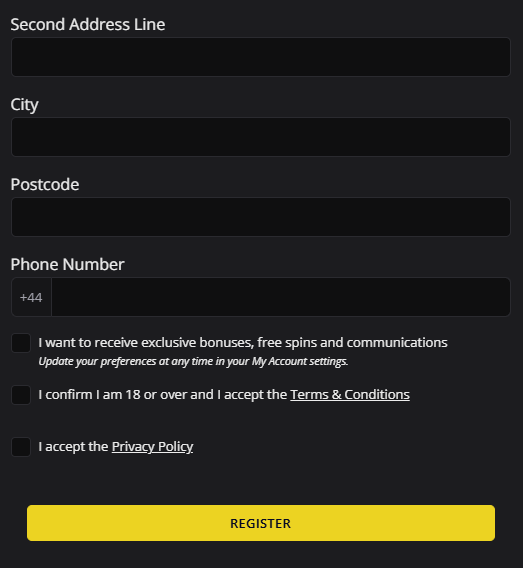
- Complete your address. Fill in First Address Line, Second Address Line where applicable, City and Postcode.
- Add your phone number. The form displays the UK country code +44. Check the number against the format requested in the field.
- Choose your communication preference. Decide whether to select the option for exclusive bonuses, free spins and communications.
- Review the declarations. Confirm that you are 18 or over, accept the Terms & Conditions and accept the Privacy Policy.
- Check and submit your details. Use the submission control shown on the form, then follow the next account or verification instructions.
If you already have a MrLuck account, select Log in instead. Recovering access to your existing account keeps your details together and avoids creating a duplicate account.
What to Prepare Before Registering
Have your current contact details and residential address ready before opening the form. An email address you regularly use is helpful for account communications, while a password created specifically for MrLuck keeps your credentials separate from those used elsewhere.
You do not need to assume that every registration will involve uploading documents. MrLuck carries out age and identity checks automatically where possible, using the information entered during sign-up. If further information is requested, having suitable identification available can make the next step easier.
Personal Details and Your Current Address
Enter your name as it appears on the identification you would use for verification. Avoid using a nickname in place of your first name or shortening your surname in a way that makes the account details differ from your documents.
For the address fields, use your current residential address. Include the information needed to identify your property, especially where a building contains several flats or units.
| Registration information | What to check |
|---|---|
| First Name and Last Name | Your names are complete and consistent with your identification. |
| Date of Birth | The day, month and year are correct. |
| First Address Line | The property number or name and street details identify your address. |
| Second Address Line | Any applicable flat, unit or additional address information is included. |
| City | The town or city matches your residential address. |
| Postcode | All characters are correct and belong to the address entered. |
| The spelling and email domain are correct. | |
| Phone Number | The number is yours and follows the format requested alongside +44. |
Accurate details are useful beyond registration. They help keep account communications, identity checks and later payment information consistent.
Email Access and a Secure Password
Check that you can access the email account you enter in the form. Pay particular attention to common mistakes such as a missing letter, an incorrect domain or an extra space introduced when copying the address.
Choose a unique password and follow the requirements displayed in the registration form. Enter it identically in both password fields. A password manager can help create and retain a strong password, but review what it fills into each field before submitting.
Keep your password private. If you register on a shared device, avoid saving your credentials where another person could use them.
Completing the MrLuck Registration Form
The Registration form collects account credentials, personal information, contact details and your account declarations. Work through it carefully rather than relying entirely on autofill, which may insert an old address or information saved for another person.
If a field displays an error, correct that field before submitting again. The message beside it is the most useful starting point because it identifies the information or format the form expects.
Entering and Reviewing Your Information
Start with Username and Email, then complete First Name, Last Name and Gender. The gender options provided are Male, Female and Other. Continue with Password and Re-enter password, ensuring the two entries match.
Next, add your Date of Birth and address. First Address Line should contain the main property and street information. Use Second Address Line for additional address details where applicable, then complete City and Postcode.
The Phone Number field displays +44. Follow the field’s formatting instructions and avoid adding the country code twice. If you paste your number, check the result before continuing.
Before submitting, review the whole form once more. A correct email address will not compensate for a mistyped date of birth or incomplete address, and these details have different roles in account setup.
Accepting Terms and Choosing Marketing Preferences
The communication option reads: I want to receive exclusive bonuses, free spins and communications. Select it if you want to receive those communications. This is a preference choice, separate from the declarations covering your age, account terms and privacy policy.
You can update your communication preferences later in your My Account settings. Choosing to receive communications should not be treated as a guarantee that a particular bonus or free-spin offer will be awarded.
The form also asks you to confirm that you are 18 or over and accept the Terms & Conditions. A separate declaration covers acceptance of the Privacy Policy. Read both before completing the relevant selections.
Submitting the Form and Following the Next Prompt
Once the information is correct and the required declarations are completed, submit the form using the control displayed on screen. Follow the next instructions presented for your account.
If the page highlights a field, return to it and make the requested correction. If the result of submission is uncertain, check whether you can access the account or ask support for assistance before attempting a second registration with different details.
Signing Up on a Mobile Phone or Tablet
You can begin MrLuck sign-up through the website on your phone or tablet. Open the MrLuck homepage, select Join Here and complete the Registration form with the same care you would use on a desktop.
A smaller screen can make it easier to overlook a field or declaration near the bottom of the form. Scroll through the full registration page before submitting, including the communication preference and both acceptance statements.
There is no need to create separate accounts for different devices. Your account is personal to you, and the one-account rule applies regardless of whether you register or access it from a computer, phone or tablet.
Checking Mobile Entries Before Submission
Review any information added by your phone’s autofill. Saved addresses may be out of date, and a keyboard may change capitalisation or insert spaces when you move between fields.
Check the email address, postcode and phone number particularly carefully. Also review the date of birth rather than assuming a selected date is correct.
If the keyboard covers a field or message, dismiss it and inspect the page. When the form does not respond as expected, check your connection and try an updated browser before repeatedly submitting the same information.
Identity Verification During Account Setup
MrLuck uses the details provided during registration to check your age and identity. Where possible, these checks are completed automatically. This makes accurate form entries especially useful, since a mismatch can lead to a request for further information.
Identity verification must be completed before you can deposit money into the account. If documents are requested, follow the specific instructions you receive and provide the information needed to complete the check.
Automatic Checks Using Your Registration Details
Automatic checks use the information entered on the registration form. Your name, date of birth and address therefore need to describe you accurately and consistently.
You will not necessarily need to send documents simply because you are opening an account. When automatic checks do not complete satisfactorily, MrLuck may request personal identification documents to confirm your age and identity.
If further information is requested, review the account details you supplied. Correcting an error and responding to the document request are more useful than starting a new account.
Documents MrLuck May Request
Document examples include a passport or driving licence, a current utility bill, and a bank or card statement. The specific request determines which documents you should provide.
| Document purpose | Examples | Practical check |
|---|---|---|
| Confirming identity and age | Passport or driving licence | Personal details are readable and consistent with your account. |
| Supporting address verification | Current utility bill or bank statement | The document shows the relevant name and address clearly. |
| Supporting additional account checks | Bank or card statement, where requested | The information requested by MrLuck is visible. |
Do not send unrelated documents simply to increase the amount of information supplied. Read the request and provide the documents that address it. If you need help understanding what is required, use Contact Us.
Preparing Readable Documents
Use clear photographs or scans so the relevant information can be read without difficulty. Poor lighting, reflections or blurred text can make an otherwise suitable document harder to review.
Before sending a document, check that:
- The name and relevant details are readable.
- The image includes the information requested.
- The address matches the account information where applicable.
- You are providing the requested document through the instructed route.
If your current details differ from those shown on a document, explain the situation to support and ask what information is needed. Do not alter the document to make it match.
What to Do After Your Account Is Created
After registration, review your account details and complete any outstanding verification instructions. Then check your communication preferences and consider setting deposit limits before funding the account.
This is also a useful point to retain your login details securely. Once the account is created, use Log in for future access rather than returning to the registration form.
Reviewing Your Details and Communication Settings
Personal information can be amended through My Account or with help from customer services. If you notice an incorrect address or another inaccurate detail, address it promptly. MrLuck may request documents to verify a change.
Communication preferences can also be updated in account settings. If you selected the option for exclusive bonuses, free spins and communications during sign-up, you can change that choice later.
Keep the distinction between promotional preferences and account information clear. Changing whether you receive marketing does not correct an inaccurate email address or replace the need to keep your personal details current.
Setting Deposit Limits Before Funding the Account
MrLuck provides daily, weekly and monthly deposit limits. Review these controls before making your first deposit and choose limits that fit the amount you are comfortable spending.
A deposit limit places a boundary on account funding. Use the account controls to review the available settings and read how the selected limit applies before confirming it.
Moving from Registration to Your First Deposit
Once identity verification is complete, you can continue to the account’s deposit area. Review the options presented there and use a payment method that belongs to you and is registered in your name.
Your account and payment details should remain consistent. Another person’s card, bank account or wallet should not be used, even with their permission. Any further payment or account checks should be completed through the instructions provided.
MrLuck Sign-Up Problems and Practical Solutions
When registration does not complete, identify the affected step first. A highlighted field calls for a different response from a page that will not load or a verification request that needs more information.
The table below gives a practical starting point. After applying the relevant check, follow any message shown by the form rather than repeatedly changing unrelated details.
| Problem | Useful first action |
|---|---|
| An email field is rejected | Check the spelling, domain and accidental spaces. |
| Password entries do not match | Re-enter both fields with the same password and follow the displayed requirements. |
| A personal-detail field is highlighted | Review the requested format and check the information entered. |
| The phone number is rejected | Check the format requested alongside +44 and whether the country code has been duplicated. |
| You have registered before | Use Log in or account recovery instead of creating another account. |
| The form will not load or respond | Check the connection, reload the page and try an updated browser. |
| More verification information is requested | Read the request and provide clear, relevant documents. |
Email, Password or Personal-Detail Errors
For email errors, inspect the full address rather than just the part before the @ symbol. A typo in the domain or a space at the beginning or end can cause problems.
For password errors, follow the rules displayed in the form. If Password and Re-enter password do not match, carefully enter the same password in both fields. Check whether autofill has inserted a different saved password into one of them.
For personal details, confirm that each entry is in the correct field. Review date selections, postcode characters and address information. If the form still rejects accurate information, record the exact message and contact support.
An Existing Account or Forgotten Login Details
MrLuck permits one account per brand. If you have signed up before, return to the homepage and select Log in.
Use the recovery option presented on the login screen if you cannot remember your credentials. Follow its instructions using the details associated with your existing account.
If recovery does not resolve the problem, ask support for help accessing that account. Creating another account with a different email address is not a suitable workaround.
A Registration Page That Will Not Load or Respond
First, check that your internet connection is working and reload the page. If the problem continues, use an updated browser or try another browser to see whether the issue is specific to the one you are using.
Clearing the relevant site’s cache and cookies may help when stored browser data is interfering with the page. Be aware that doing this can remove saved login and preference information, and you may need to re-enter form details.
Blocking necessary cookies can also affect website functionality. Review your browser settings if the page does not work as expected. If these steps do not help, contact support with your device, browser and a description of the problem.
Verification That Needs Further Information
Read the verification request carefully and check which information remains outstanding. A request for proof of address should be answered with the relevant address information rather than another copy of an identity document.
Review image quality and consistency with your registration details before sending documents. If a previous image was blurred or the information was difficult to read, provide a clearer copy through the instructed route.
If you do not understand the request or need to correct an account detail, contact support. Describe the specific issue so the team can explain the next action.
Getting Help with MrLuck Registration
MrLuck provides live chat and email assistance through Contact Us. Use that page when a form error persists, you need help with an existing account or a verification request needs explanation.
Make your message specific. Include the registration step affected, the exact error wording and the device and browser you are using. A screenshot can help show a display problem, but avoid including your password or unnecessary personal information.
If you have already submitted the registration form, explain what happened afterwards. This gives support a clearer starting point than attempting another registration and helps keep the assistance focused on completing or accessing your account.
Create Your MrLuck Casino Account for United Kingdom Players
Create your MrLuck Casino account to continue with the current welcome offer.

Current Bonus Deals October 2026